Flutter for OpenHarmony 跨平台开发:记事本功能实战指南
欢迎加入开源鸿蒙跨平台社区:https://openharmonycrossplatform.csdn.net
一、引言
记事本是移动设备中最基础且常用的应用之一,其开发涉及数据存储、列表展示、搜索过滤、状态管理等多个技术领域。随着鸿蒙生态的快速发展,如何高效地实现跨平台记事本应用,成为开发者关注的技术要点。
Flutter作为Google推出的开源UI框架,凭借其跨平台能力和丰富的组件生态,为记事本功能的实现提供了便捷的技术方案。Flutter for OpenHarmony的出现,使得Flutter开发者能够将应用部署到鸿蒙设备,进一步拓展了跨平台开发的应用范围。
本文将以记事本功能为例,详细介绍如何使用Flutter for OpenHarmony实现笔记的增删改查、搜索过滤、排序、置顶等功能,为开发者提供完整的技术参考。
二、技术背景
2.1 Flutter for OpenHarmony概述
Flutter是Google于2017年发布的开源UI框架,采用Dart语言进行开发。Flutter通过Skia渲染引擎实现自绘,不依赖平台原生组件,从而保证了不同平台上UI的一致性。
OpenHarmony是由开放原子开源基金会孵化的开源操作系统项目,旨在构建万物智联的操作系统生态。Flutter for OpenHarmony是Flutter在OpenHarmony平台上的适配实现,使Flutter开发者能够将应用无缝部署到鸿蒙设备。
2.2 记事本的技术架构
实现记事本功能涉及以下核心技术:
数据管理:使用List存储笔记数据,Map结构存储单条笔记的各个属性。
搜索过滤:实现标题和内容的模糊搜索,支持实时过滤。
排序功能:支持按时间、按标题等多种排序方式。
状态管理:使用setState管理笔记列表、搜索条件、排序方式等状态。
2.3 Flutter与原生鸿蒙开发的对比
| 对比维度 | Flutter for OpenHarmony | 原生鸿蒙开发(ArkTS) |
|---|---|---|
| 编程语言 | Dart | ArkTS |
| 列表组件 | ListView功能完善 | List组件需适配 |
| 搜索实现 | 简洁高效 | 需要手动实现 |
| 跨平台能力 | 支持多平台 | 仅限鸿蒙平台 |
| 开发效率 | 热重载支持 | 需要重新编译 |
三、功能设计
3.1 需求分析
记事本功能的核心需求包括:
- 笔记管理:支持创建、编辑、删除笔记
- 搜索功能:支持按标题和内容搜索笔记
- 排序功能:支持按时间、按标题排序
- 置顶功能:支持将重要笔记置顶显示
- 颜色标记:支持为笔记选择不同颜色
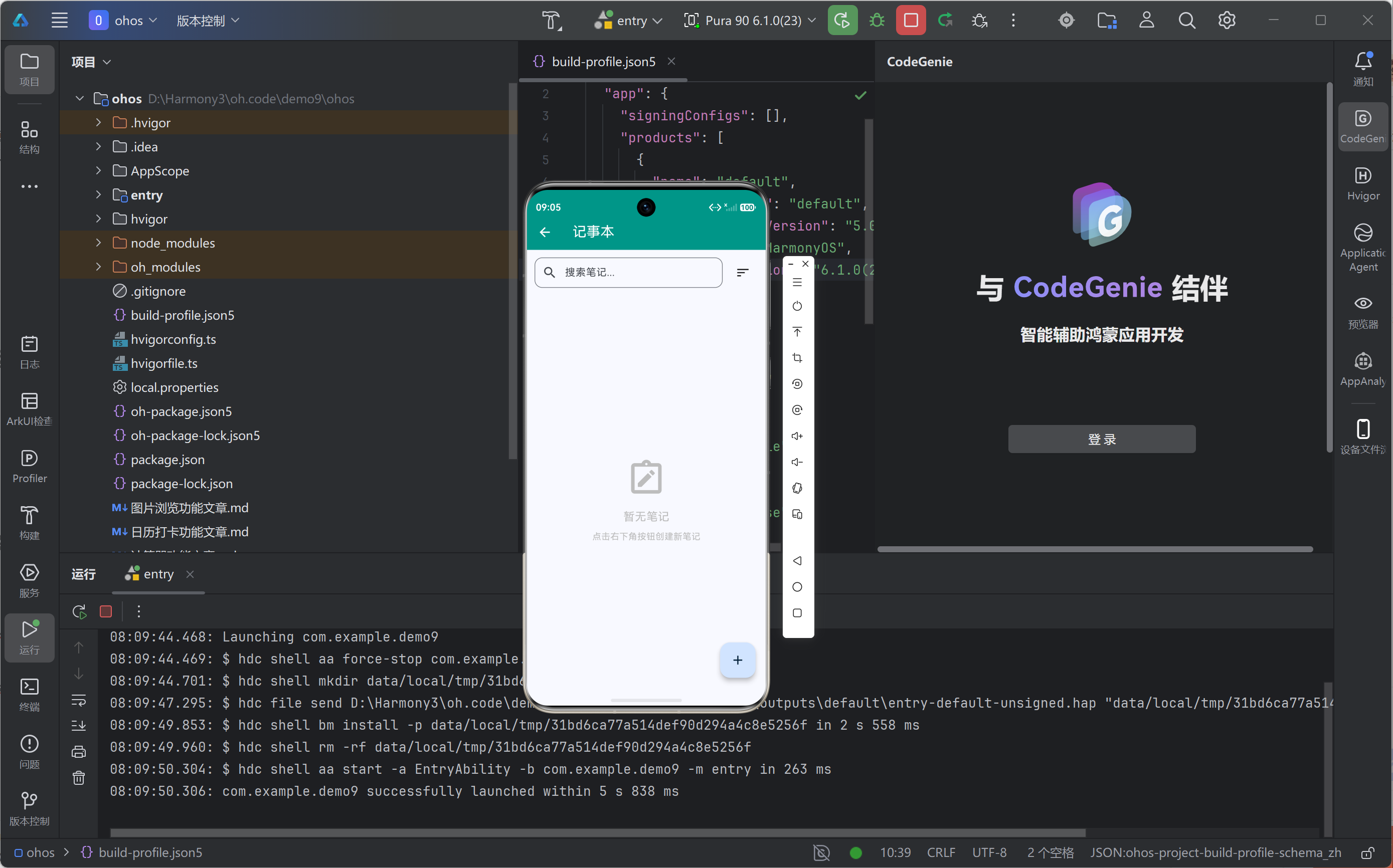
- 空状态展示:无笔记时显示引导信息
3.2 数据结构设计
每条笔记采用Map结构存储,包含以下字段:
1{
2  'id': int,           // 唯一标识
3  'title': String,     // 标题
4  'content': String,   // 内容
5  'date': DateTime,    // 创建/修改时间
6  'color': int,        // 颜色索引
7  'isPinned': bool,    // 是否置顶
8}
9
3.3 界面设计
界面分为以下几个部分:
搜索栏:包含搜索输入框和排序按钮
笔记列表:展示所有笔记卡片,置顶笔记优先显示
浮动按钮:点击创建新笔记
编辑弹窗:底部弹出的笔记编辑界面
四、核心实现
4.1 状态变量定义
使用以下状态变量管理记事本状态:
1// 笔记列表
2final List<Map<String, dynamic>> _notes = [];
3
4// 标题输入控制器
5final TextEditingController _titleController = TextEditingController();
6
7// 内容输入控制器
8final TextEditingController _contentController = TextEditingController();
9
10// 选中的颜色索引
11int _selectedColorIndex = 0;
12
13// 搜索关键词
14String _searchQuery = '';
15
16// 排序方式
17String _sortBy = 'date';
18
19// 可选颜色列表
20final List<Color> _colors = [
21  Colors.yellow.shade100,
22  Colors.green.shade100,
23  Colors.blue.shade100,
24  Colors.pink.shade100,
25  Colors.purple.shade100,
26  Colors.orange.shade100,
27];
28
4.2 搜索与排序实现
搜索和排序的过滤逻辑:
1List<Map<String, dynamic>> get _filteredNotes {
2  // 按搜索关键词过滤
3  var notes = _notes.where((n) =>
4      n['title'].toString().toLowerCase().contains(_searchQuery.toLowerCase()) ||
5      n['content'].toString().toLowerCase().contains(_searchQuery.toLowerCase())
6  ).toList();
7
8  // 排序
9  if (_sortBy == 'date') {
10    notes.sort((a, b) => (b['date'] as DateTime).compareTo(a['date'] as DateTime));
11  } else if (_sortBy == 'title') {
12    notes.sort((a, b) => a['title'].toString().compareTo(b['title'].toString()));
13  }
14
15  return notes;
16}
17
4.3 添加笔记
添加新笔记的实现:
1void _addNote() {
2  // 验证输入
3  if (_titleController.text.trim().isEmpty &&
4      _contentController.text.trim().isEmpty) return;
5
6  setState(() {
7    _notes.insert(0, {
8      'id': DateTime.now().millisecondsSinceEpoch,
9      'title': _titleController.text.isEmpty
10          ? '无标题'
11          : _titleController.text,
12      'content': _contentController.text,
13      'date': DateTime.now(),
14      'color': _selectedColorIndex,
15      'isPinned': false,
16    });
17    // 清空输入
18    _titleController.clear();
19    _contentController.clear();
20    _selectedColorIndex = 0;
21  });
22  Navigator.pop(context);
23}
24
4.4 编辑笔记
编辑已有笔记的实现:
1void _editNote(int index) {
2  final note = _notes[index];
3  // 填充现有内容
4  _titleController.text = note['title'];
5  _contentController.text = note['content'];
6  _selectedColorIndex = note['color'];
7
8  // 显示编辑弹窗
9  showModalBottomSheet(
10    context: context,
11    isScrollControlled: true,
12    builder: (context) => _buildNoteEditor(isEdit: true, editIndex: index),
13  );
14}
15
16void _updateNote(int index) {
17  setState(() {
18    _notes[index]['title'] = _titleController.text.isEmpty
19        ? '无标题'
20        : _titleController.text;
21    _notes[index]['content'] = _contentController.text;
22    _notes[index]['color'] = _selectedColorIndex;
23    _notes[index]['date'] = DateTime.now();
24  });
25  _titleController.clear();
26  _contentController.clear();
27  Navigator.pop(context);
28}
29
4.5 删除笔记
删除笔记的实现,包含确认对话框:
1void _deleteNote(int index) {
2  showDialog(
3    context: context,
4    builder: (context) => AlertDialog(
5      title: const Text('删除笔记'),
6      content: const Text('确定要删除这条笔记吗?'),
7      actions: [
8        TextButton(
9          onPressed: () => Navigator.pop(context),
10          child: const Text('取消')
11        ),
12        TextButton(
13          onPressed: () {
14            setState(() => _notes.removeAt(index));
15            Navigator.pop(context);
16          },
17          child: const Text('删除', style: TextStyle(color: Colors.red)),
18        ),
19      ],
20    ),
21  );
22}
23
4.6 置顶功能
置顶笔记的实现:
1void _togglePin(int index) {
2  setState(() {
3    _notes[index]['isPinned'] = !_notes[index]['isPinned'];
4  });
5}
6
五、完整代码实现
1import 'package:flutter/material.dart'; 2 3class NotesFeature extends StatefulWidget { 4 const NotesFeature({super.key}); 5 6 7 State<NotesFeature> createState() => _NotesFeatureState(); 8} 9 10class _NotesFeatureState extends State<NotesFeature> { 11 final List<Map<String, dynamic>> _notes = []; 12 final TextEditingController _titleController = TextEditingController(); 13 final TextEditingController _contentController = TextEditingController(); 14 int _selectedColorIndex = 0; 15 String _searchQuery = ''; 16 String _sortBy = 'date'; 17 18 final List<Color> _colors = [ 19 Colors.yellow.shade100, 20 Colors.green.shade100, 21 Colors.blue.shade100, 22 Colors.pink.shade100, 23 Colors.purple.shade100, 24 Colors.orange.shade100, 25 ]; 26 27 List<Map<String, dynamic>> get _filteredNotes { 28 var notes = _notes.where((n) => 29 n['title'].toString().toLowerCase().contains(_searchQuery.toLowerCase()) || 30 n['content'].toString().toLowerCase().contains(_searchQuery.toLowerCase()) 31 ).toList(); 32 33 if (_sortBy == 'date') { 34 notes.sort((a, b) => (b['date'] as DateTime).compareTo(a['date'] as DateTime)); 35 } else if (_sortBy == 'title') { 36 notes.sort((a, b) => a['title'].toString().compareTo(b['title'].toString())); 37 } 38 39 return notes; 40 } 41 42 void _addNote() { 43 if (_titleController.text.trim().isEmpty && _contentController.text.trim().isEmpty) return; 44 45 setState(() { 46 _notes.insert(0, { 47 'id': DateTime.now().millisecondsSinceEpoch, 48 'title': _titleController.text.isEmpty ? '无标题' : _titleController.text, 49 'content': _contentController.text, 50 'date': DateTime.now(), 51 'color': _selectedColorIndex, 52 'isPinned': false, 53 }); 54 _titleController.clear(); 55 _contentController.clear(); 56 _selectedColorIndex = 0; 57 }); 58 Navigator.pop(context); 59 } 60 61 void _editNote(int index) { 62 final note = _notes[index]; 63 _titleController.text = note['title']; 64 _contentController.text = note['content']; 65 _selectedColorIndex = note['color']; 66 67 showModalBottomSheet( 68 context: context, 69 isScrollControlled: true, 70 builder: (context) => _buildNoteEditor(isEdit: true, editIndex: index), 71 ); 72 } 73 74 void _updateNote(int index) { 75 setState(() { 76 _notes[index]['title'] = _titleController.text.isEmpty ? '无标题' : _titleController.text; 77 _notes[index]['content'] = _contentController.text; 78 _notes[index]['color'] = _selectedColorIndex; 79 _notes[index]['date'] = DateTime.now(); 80 }); 81 _titleController.clear(); 82 _contentController.clear(); 83 Navigator.pop(context); 84 } 85 86 void _deleteNote(int index) { 87 showDialog( 88 context: context, 89 builder: (context) => AlertDialog( 90 title: const Text('删除笔记'), 91 content: const Text('确定要删除这条笔记吗?'), 92 actions: [ 93 TextButton(onPressed: () => Navigator.pop(context), child: const Text('取消')), 94 TextButton( 95 onPressed: () { 96 setState(() => _notes.removeAt(index)); 97 Navigator.pop(context); 98 }, 99 child: const Text('删除', style: TextStyle(color: Colors.red)), 100 ), 101 ], 102 ), 103 ); 104 } 105 106 void _togglePin(int index) { 107 setState(() { 108 _notes[index]['isPinned'] = !_notes[index]['isPinned']; 109 }); 110 } 111 112 113 Widget build(BuildContext context) { 114 return Scaffold( 115 body: Column( 116 children: [ 117 _buildSearchBar(), 118 Expanded( 119 child: _filteredNotes.isEmpty ? _buildEmptyState() : _buildNotesList(), 120 ), 121 ], 122 ), 123 floatingActionButton: FloatingActionButton( 124 onPressed: () { 125 _titleController.clear(); 126 _contentController.clear(); 127 _selectedColorIndex = 0; 128 showModalBottomSheet( 129 context: context, 130 isScrollControlled: true, 131 builder: (context) => _buildNoteEditor(), 132 ); 133 }, 134 child: const Icon(Icons.add), 135 ), 136 ); 137 } 138 139 Widget _buildSearchBar() { 140 return Container( 141 padding: const EdgeInsets.all(12), 142 child: Row( 143 children: [ 144 Expanded( 145 child: TextField( 146 onChanged: (v) => setState(() => _searchQuery = v), 147 decoration: InputDecoration( 148 hintText: '搜索笔记...', 149 prefixIcon: const Icon(Icons.search), 150 border: OutlineInputBorder(borderRadius: BorderRadius.circular(12)), 151 contentPadding: const EdgeInsets.symmetric(horizontal: 12), 152 ), 153 ), 154 ), 155 const SizedBox(width: 8), 156 PopupMenuButton<String>( 157 icon: const Icon(Icons.sort), 158 onSelected: (v) => setState(() => _sortBy = v), 159 itemBuilder: (context) => [ 160 const PopupMenuItem(value: 'date', child: Text('按时间排序')), 161 const PopupMenuItem(value: 'title', child: Text('按标题排序')), 162 ], 163 ), 164 ], 165 ), 166 ); 167 } 168 169 Widget _buildEmptyState() { 170 return Center( 171 child: Column( 172 mainAxisAlignment: MainAxisAlignment.center, 173 children: [ 174 Icon(Icons.note_alt_outlined, size: 64, color: Colors.grey.shade400), 175 const SizedBox(height: 16), 176 Text('暂无笔记', style: TextStyle(fontSize: 18, color: Colors.grey.shade400)), 177 const SizedBox(height: 8), 178 Text('点击右下角按钮创建新笔记', style: TextStyle(fontSize: 14, color: Colors.grey.shade400)), 179 ], 180 ), 181 ); 182 } 183 184 Widget _buildNotesList() { 185 final pinnedNotes = _filteredNotes.where((n) => n['isPinned']).toList(); 186 final otherNotes = _filteredNotes.where((n) => !n['isPinned']).toList(); 187 188 return ListView( 189 padding: const EdgeInsets.all(12), 190 children: [ 191 if (pinnedNotes.isNotEmpty) ...[ 192 const Padding( 193 padding: EdgeInsets.symmetric(vertical: 8), 194 child: Text('已置顶', style: TextStyle(fontWeight: FontWeight.bold, color: Colors.grey)), 195 ), 196 ...pinnedNotes.map((note) => _buildNoteCard(_notes.indexOf(note), note)), 197 ], 198 if (otherNotes.isNotEmpty) ...[ 199 if (pinnedNotes.isNotEmpty) 200 const Padding( 201 padding: EdgeInsets.symmetric(vertical: 8), 202 child: Text('其他', style: TextStyle(fontWeight: FontWeight.bold, color: Colors.grey)), 203 ), 204 ...otherNotes.map((note) => _buildNoteCard(_notes.indexOf(note), note)), 205 ], 206 ], 207 ); 208 } 209 210 Widget _buildNoteCard(int index, Map<String, dynamic> note) { 211 return Card( 212 margin: const EdgeInsets.only(bottom: 8), 213 color: _colors[note['color']], 214 child: InkWell( 215 onTap: () => _editNote(index), 216 borderRadius: BorderRadius.circular(12), 217 child: Padding( 218 padding: const EdgeInsets.all(16), 219 child: Column( 220 crossAxisAlignment: CrossAxisAlignment.start, 221 children: [ 222 Row( 223 children: [ 224 Expanded( 225 child: Text( 226 note['title'], 227 style: const TextStyle(fontSize: 16, fontWeight: FontWeight.bold), 228 ), 229 ), 230 if (note['isPinned']) 231 const Icon(Icons.push_pin, size: 16, color: Colors.grey), 232 ], 233 ), 234 const SizedBox(height: 8), 235 Text( 236 note['content'], 237 style: const TextStyle(fontSize: 14), 238 maxLines: 3, 239 overflow: TextOverflow.ellipsis, 240 ), 241 const SizedBox(height: 8), 242 Row( 243 mainAxisAlignment: MainAxisAlignment.spaceBetween, 244 children: [ 245 Text( 246 _formatDate(note['date']), 247 style: const TextStyle(fontSize: 12, color: Colors.grey), 248 ), 249 Row( 250 mainAxisSize: MainAxisSize.min, 251 children: [ 252 IconButton( 253 icon: Icon(note['isPinned'] ? Icons.push_pin : Icons.push_pin_outlined, size: 20), 254 onPressed: () => _togglePin(index), 255 padding: EdgeInsets.zero, 256 constraints: const BoxConstraints(), 257 ), 258 const SizedBox(width: 8), 259 IconButton( 260 icon: const Icon(Icons.delete_outline, size: 20, color: Colors.red), 261 onPressed: () => _deleteNote(index), 262 padding: EdgeInsets.zero, 263 constraints: const BoxConstraints(), 264 ), 265 ], 266 ), 267 ], 268 ), 269 ], 270 ), 271 ), 272 ), 273 ); 274 } 275 276 Widget _buildNoteEditor({bool isEdit = false, int? editIndex}) { 277 return Padding( 278 padding: EdgeInsets.only( 279 bottom: MediaQuery.of(context).viewInsets.bottom, 280 left: 16, 281 right: 16, 282 top: 16, 283 ), 284 child: SingleChildScrollView( 285 child: Column( 286 mainAxisSize: MainAxisSize.min, 287 crossAxisAlignment: CrossAxisAlignment.stretch, 288 children: [ 289 Text( 290 isEdit ? '编辑笔记' : '新建笔记', 291 style: const TextStyle(fontSize: 18, fontWeight: FontWeight.bold), 292 ), 293 const SizedBox(height: 16), 294 TextField( 295 controller: _titleController, 296 decoration: const InputDecoration( 297 hintText: '标题', 298 border: OutlineInputBorder(), 299 ), 300 style: const TextStyle(fontSize: 18, fontWeight: FontWeight.bold), 301 ), 302 const SizedBox(height: 12), 303 TextField( 304 controller: _contentController, 305 decoration: const InputDecoration( 306 hintText: '内容', 307 border: OutlineInputBorder(), 308 ), 309 maxLines: 6, 310 ), 311 const SizedBox(height: 12), 312 const Text('选择颜色:', style: TextStyle(fontSize: 14)), 313 const SizedBox(height: 8), 314 Wrap( 315 spacing: 8, 316 children: List.generate(_colors.length, (index) => GestureDetector( 317 onTap: () => setState(() => _selectedColorIndex = index), 318 child: Container( 319 width: 36, 320 height: 36, 321 decoration: BoxDecoration( 322 color: _colors[index], 323 shape: BoxShape.circle, 324 border: _selectedColorIndex == index 325 ? Border.all(color: Colors.black, width: 2) 326 : null, 327 ), 328 child: _selectedColorIndex == index 329 ? const Icon(Icons.check, size: 20) 330 : null, 331 ), 332 )), 333 ), 334 const SizedBox(height: 16), 335 ElevatedButton( 336 onPressed: isEdit ? () => _updateNote(editIndex!) : _addNote, 337 style: ElevatedButton.styleFrom(padding: const EdgeInsets.symmetric(vertical: 12)), 338 child: Text(isEdit ? '保存' : '创建'), 339 ), 340 const SizedBox(height: 16), 341 ], 342 ), 343 ), 344 ); 345 } 346 347 String _formatDate(DateTime date) { 348 return '${date.year}/${date.month}/${date.day} ${date.hour}:${date.minute.toString().padLeft(2, '0')}'; 349 } 350} 351
六、运行效果
七、关键技术点解析
7.1 ListView与笔记列表
Flutter的ListView组件非常适合构建笔记列表:
1ListView(
2  padding: const EdgeInsets.all(12),
3  children: [
4    // 置顶笔记区域
5    if (pinnedNotes.isNotEmpty) ...[
6      const Text('已置顶'),
7      ...pinnedNotes.map((note) => _buildNoteCard(note)),
8    ],
9    // 其他笔记区域
10    if (otherNotes.isNotEmpty) ...[
11      const Text('其他'),
12      ...otherNotes.map((note) => _buildNoteCard(note)),
13    ],
14  ],
15)
16
通过将置顶笔记和其他笔记分开处理,实现了置顶优先显示的效果。
7.2 showModalBottomSheet编辑弹窗
使用showModalBottomSheet实现底部弹出的编辑界面:
1showModalBottomSheet(
2  context: context,
3  isScrollControlled: true,  // 允许弹窗高度自适应
4  builder: (context) => _buildNoteEditor(),
5);
6
设置isScrollControlled为true,可以让弹窗根据内容自适应高度,配合MediaQuery.of(context).viewInsets.bottom处理键盘弹出时的布局。
7.3 TextEditingController输入控制
TextEditingController用于控制输入框的内容:
1final TextEditingController _titleController = TextEditingController();
2
3// 设置内容
4_titleController.text = note['title'];
5
6// 清空内容
7_titleController.clear();
8
9// 获取内容
10String title = _titleController.text;
11
7.4 PopupMenuButton排序菜单
PopupMenuButton用于实现排序选项菜单:
1PopupMenuButton<String>(
2  icon: const Icon(Icons.sort),
3  onSelected: (v) => setState(() => _sortBy = v),
4  itemBuilder: (context) => [
5    const PopupMenuItem(value: 'date', child: Text('按时间排序')),
6    const PopupMenuItem(value: 'title', child: Text('按标题排序')),
7  ],
8)
9
7.5 OpenHarmony平台适配要点
在OpenHarmony设备上运行Flutter应用,需要注意:
- 签名配置:需要在DevEco Studio中配置应用签名
- 数据持久化:本示例使用内存存储,实际应用需集成shared_preferences或hive
- 触摸交互:使用InkWell和IconButton处理触摸事件
八、总结与展望
本文详细介绍了使用Flutter for OpenHarmony开发记事本功能的完整过程。通过合理的数据结构设计、清晰的增删改查逻辑、规范的UI组件构建,实现了一个功能完善、交互友好的记事本模块。
技术要点回顾:
- 使用List存储笔记数据
- 使用TextEditingController控制输入
- 使用showModalBottomSheet实现编辑弹窗
- 使用PopupMenuButton实现排序菜单
- 实现搜索过滤和置顶功能
扩展方向:
- 数据持久化:集成shared_preferences或hive实现数据本地存储
- 分类功能:支持笔记分类管理
- 富文本编辑:支持格式化文本和图片
- 云同步:接入后端服务实现多设备同步
Flutter for OpenHarmony为开发者提供了便捷的跨平台开发能力,使得记事本等常见功能能够高效地在鸿蒙设备上实现。随着鸿蒙生态的不断发展,Flutter跨平台技术将在更多应用场景中发挥重要作用。
